Nano Banana prompt to enhance image quality: unblur, upscale and clean up a photo
By GetStepSnap · Tested October 8, 2026
Some photos are almost good. The selfie that went soft because the camera focused on the window. The picture that turns into squares when you zoom in. The dark shot from a bar, the screenshot that's been forwarded five times. Nano Banana 2.1 can redraw each of them as a sharp, bigger image from one short prompt.
We wanted to know how close it gets, so we worked backwards: we took sharp photos made with the model, damaged them on purpose, and asked it to fix them. Each fix below is the first result we got, resized and nothing else, and further down you can see it next to the photo we started from. No real person appears on this page.
The prompt
Attach the photo, fill in the blank with what's wrong with it, and pick 2K or 4K. The size setting decides how many pixels you get; the prompt decides what the model may change.
Enhance this photo. It is [what's wrong with it]. Make it a sharp, clean, high-resolution version of the same photo, as if it had been taken with a good camera: crisp focus, natural detail in skin, hair, fabric and surfaces, balanced exposure, and no blur, noise, pixelation or compression blocks. Keep everything else exactly as it is: the same faces and expressions, pose, clothes, objects, any text, background, framing and colors. Do not add, remove or restyle anything, do not smooth or beautify skin, and do not add filters, borders or watermarks.
Four fixes and the prompts behind them
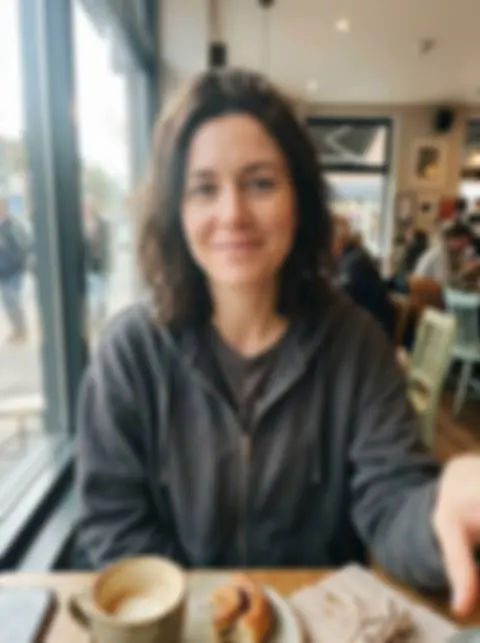
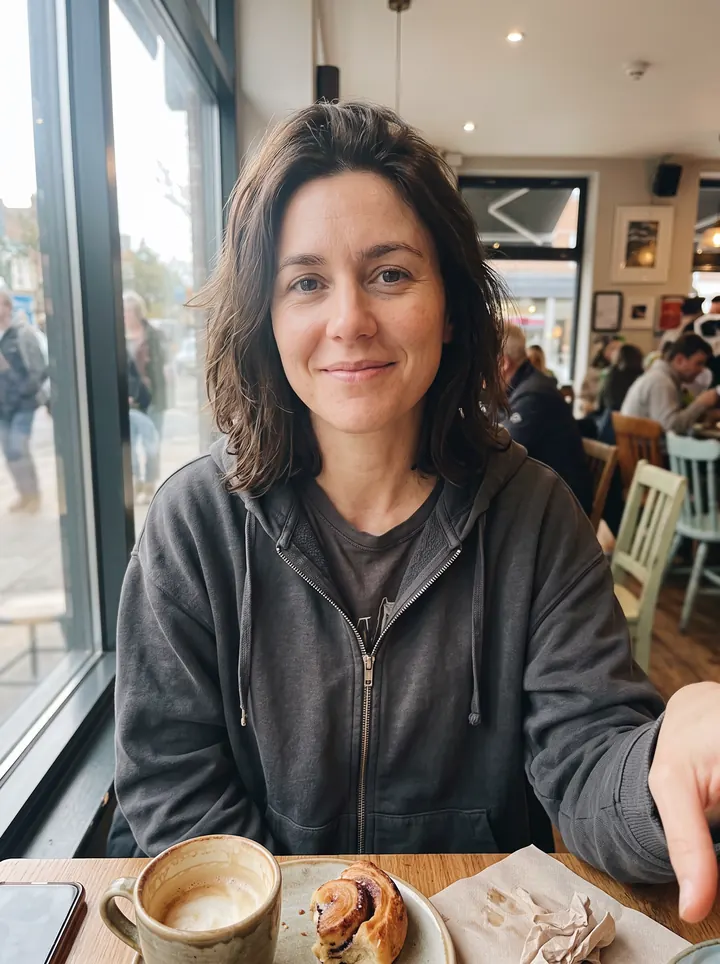
A blurry selfie
Enhance this photo. It is a blurry, out-of-focus phone selfie. Make it a sharp, clean, high-resolution version of the same photo, as if it had been taken with a good camera: crisp focus, natural detail in skin, hair, fabric and surfaces, balanced exposure, and no blur, noise, pixelation or compression blocks. Keep everything else exactly as it is: the same faces and expressions, pose, clothes, objects, any text, background, framing and colors. Do not add, remove or restyle anything, do not smooth or beautify skin, and do not add filters, borders or watermarks.
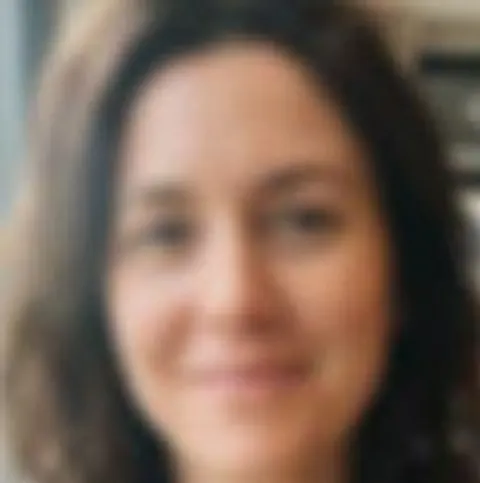
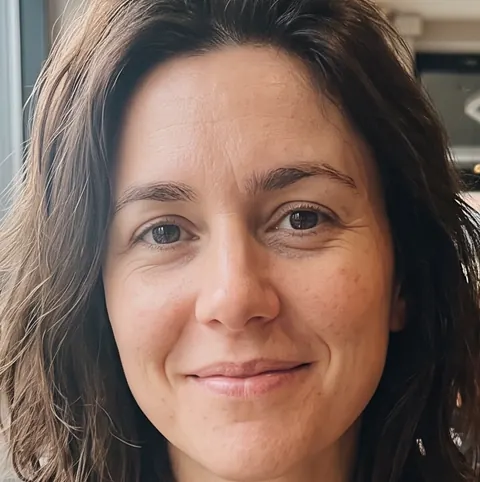
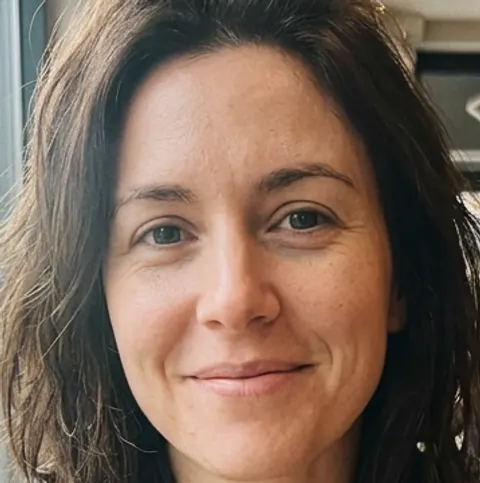
Her face came back sharp and still looks like her, with the coffee, the pastry and the people behind her. Up close it isn't a copy of the photo we blurred: the eyebrows and the shape of the eyes are a little different.
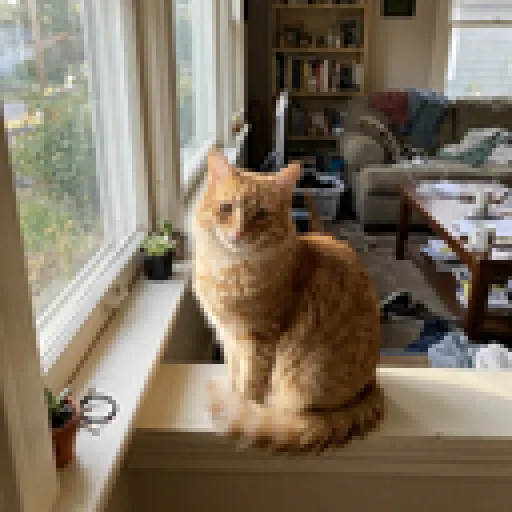
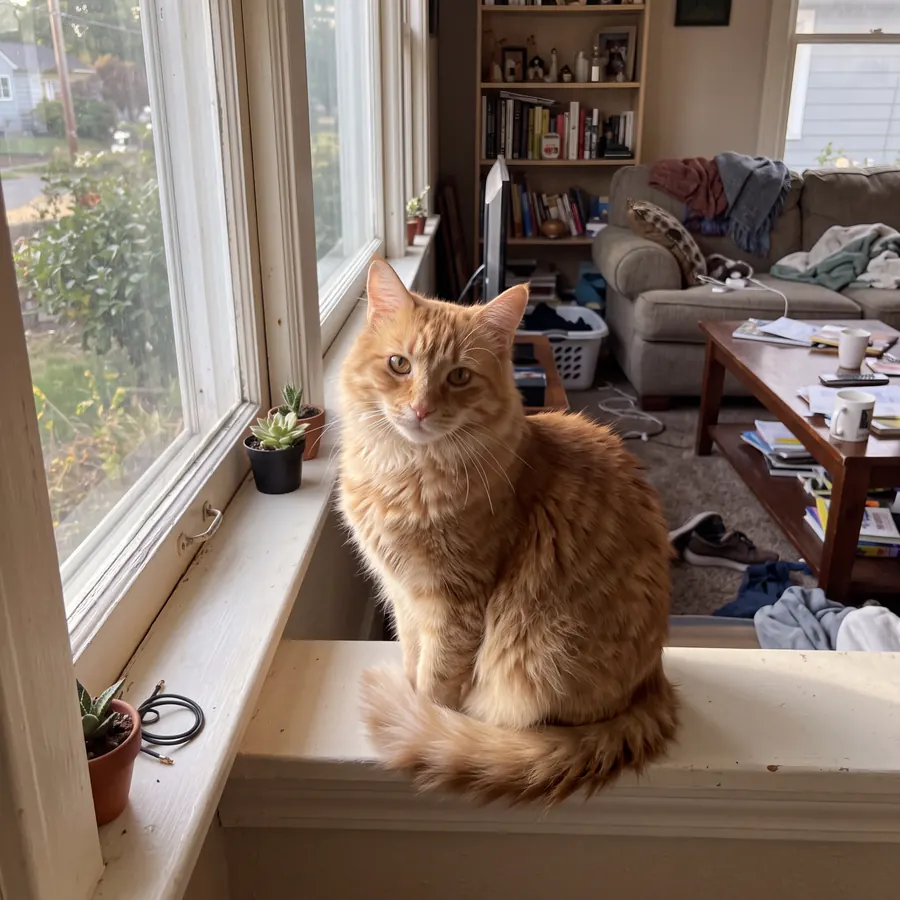
A tiny photo, made 4K
Enhance this photo. It is a tiny, low-resolution picture that turns into pixels when enlarged. Make it a sharp, clean, high-resolution version of the same photo, as if it had been taken with a good camera: crisp focus, natural detail in skin, hair, fabric and surfaces, balanced exposure, and no blur, noise, pixelation or compression blocks. Keep everything else exactly as it is: the same faces and expressions, pose, clothes, objects, any text, background, framing and colors. Do not add, remove or restyle anything, do not smooth or beautify skin, and do not add filters, borders or watermarks.
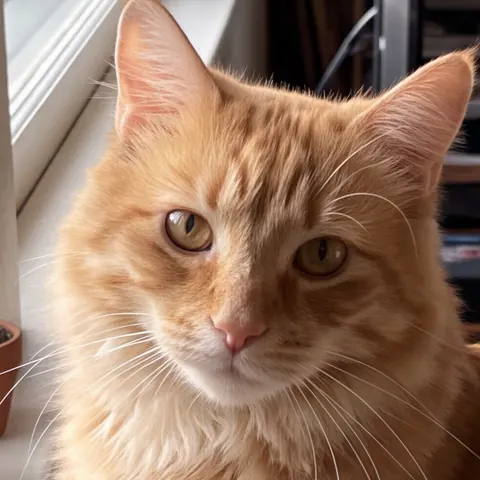
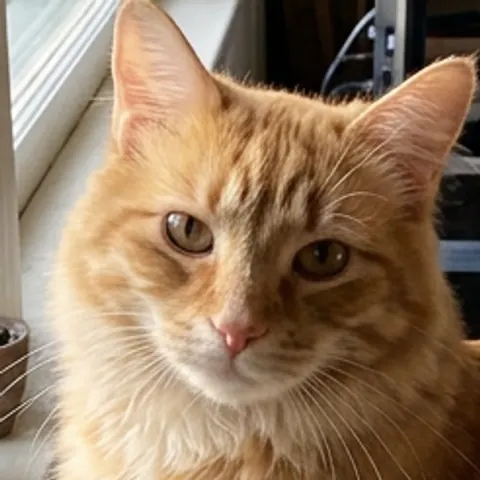
From 128 pixels across to 4096, in 44 seconds. The cat looks very close to the original. The books and the clutter in the room are new guesses that follow the old layout.
A dark, grainy night photo
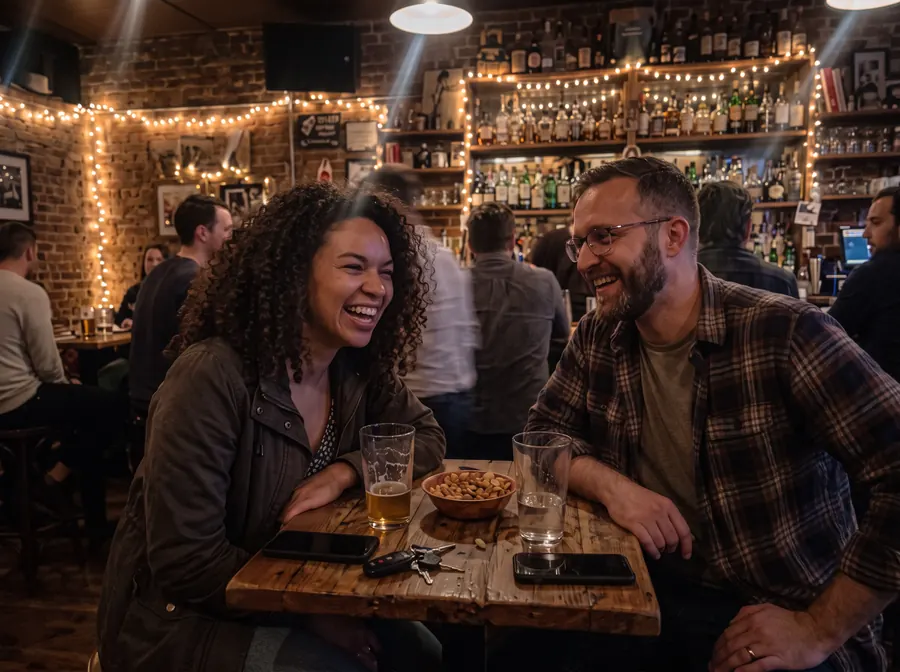
Enhance this photo. It is a dark, grainy phone photo taken at night. Make it a sharp, clean, high-resolution version of the same photo, as if it had been taken with a good camera: crisp focus, natural detail in skin, hair, fabric and surfaces, balanced exposure, and no blur, noise, pixelation or compression blocks. Keep everything else exactly as it is: the same faces and expressions, pose, clothes, objects, any text, background, framing and colors. Do not add, remove or restyle anything, do not smooth or beautify skin, and do not add filters, borders or watermarks.
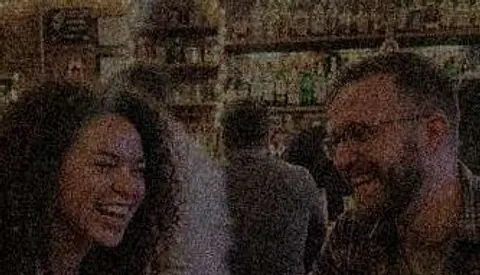
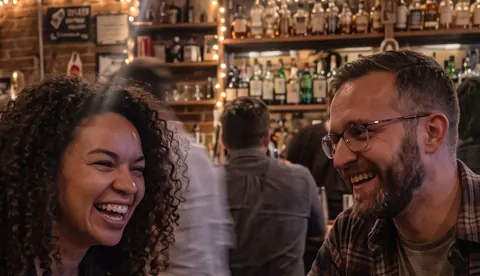
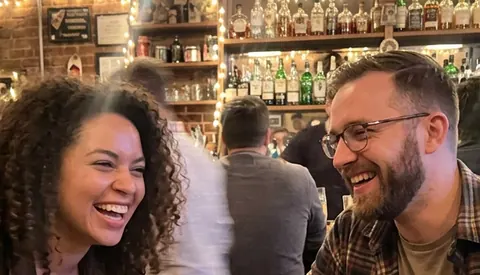
The noise is gone, the light is brighter, and the bottles and string lights are back. The two faces are close to the originals but not exact; under that much noise the model has to guess.
A blocky screenshot with text
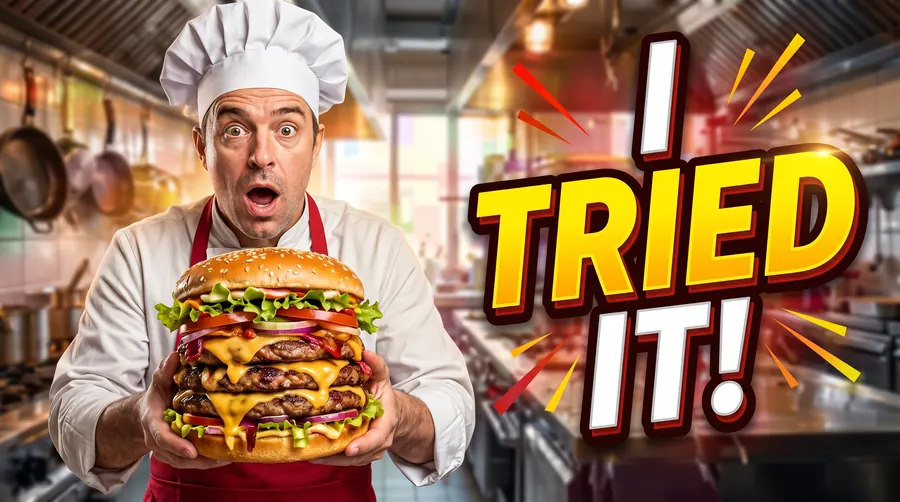
Enhance this photo. It is a blurry screenshot full of compression blocks. Make it a sharp, clean, high-resolution version of the same photo, as if it had been taken with a good camera: crisp focus, natural detail in skin, hair, fabric and surfaces, balanced exposure, and no blur, noise, pixelation or compression blocks. Keep everything else exactly as it is: the same faces and expressions, pose, clothes, objects, any text, background, framing and colors. Do not add, remove or restyle anything, do not smooth or beautify skin, and do not add filters, borders or watermarks.
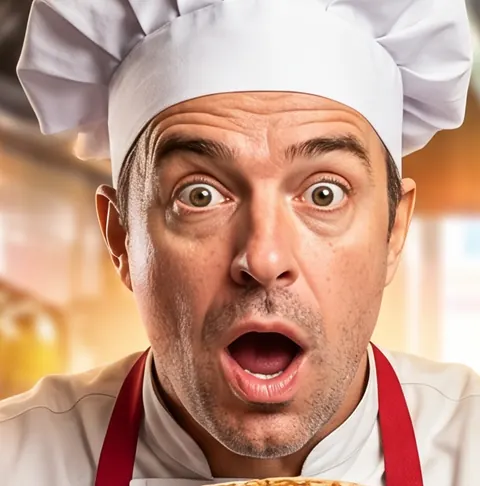
The words came back spelled right in the same lettering, and the burger has its layers again. The chef's face is a close guess, and there are fewer sparks around the words than in the original.
Up close: the fix next to the original
Because we damaged these photos ourselves, we can hold each fix up against the real thing. They're close, and the 4K cat is closer than we expected. Still, a fix is the model's best guess at what was there, not the lost pixels coming back. Look at the eyes.
The blurry selfie
The 128-pixel cat
The dark night photo
The blocky screenshot

Tips
- Name the problem. Blurry, too small, dark and grainy, blocky: each points the model at a different fix. The four phrases we used are in the cards above.
- Pick the size in the tool, not in the prompt. Our prompts never say 4K; the cat is 4096 pixels across because we chose 4K. 2K is plenty for a phone screen; take 4K if you'll print it or crop in.
- Leave the keep-list in. The sentence that starts "Keep everything else exactly as it is" tells the model what not to touch. It's the reason the prompt is long.
- Check faces before you share. Every face we tried looked like the same person at arm's length and a little different up close. If something's off, run it again, or click "Edit this image" and ask for only that change.
- Old prints are a different job. For scratches, creases and faded color, see restore and colorize old photos.
What it costs
On GetStepSnap your first 1K image is free. After that a fix takes 1 credit at 2K and 3 credits at 4K, and 100 credits cost $9.90 (plus local tax where it applies), about $0.10 a credit, with no subscription. Ours took 25 to 27 seconds at 2K and 44 seconds at 4K. More edits like this in our prompt library.
Questions
What's a good Nano Banana prompt to enhance image quality?
Use the template on this page and fill in its one blank with what's wrong, for example "a blurry, out-of-focus phone selfie". It asks for a sharp, clean version of the same photo and lists everything to keep, then you pick 2K or 4K. All four fixes on this page came from it.
Can Nano Banana upscale an image to 4K?
Yes. Pick 4K in the size setting: our 128 x 128 pixel cat came back 4096 x 4096 in 44 seconds, and the prompt never mentions 4K. On GetStepSnap 4K takes 3 credits and 2K takes 1 credit.
Can it unblur a face without changing it?
Mostly. Our blurry selfie came back looking like the same woman, but next to the sharp photo we had blurred, the eyebrows and the shape of the eyes were a little different. The blurrier the face, the more the model has to guess, so compare the result with your photo before you use it.
Can it fix text in a blurry screenshot?
In our test, yes: "I TRIED IT!" came back spelled right in the same lettering. That was big, bold text; we didn't test small print.
Does it work on old photos?
Old prints have other damage: scratches, creases, tears and faded color. We tested those in a separate guide, Restore and colorize old photos.
How much does it cost on GetStepSnap?
Your first 1K image is free. After that a fix takes 1 credit at 2K and 3 credits at 4K, and 100 credits cost $9.90 (plus local tax where it applies), about $0.10 a credit. No subscription.
What happens to the photos I upload?
We store them so the model can read them and so your results stay in your account. We don't sell them or use them for anything else. To have them deleted, email support@getstepsnap.com.