Restore and colorize old photos with Nano Banana 2.1
By GetStepSnap · Tested October 8, 2026
Most families have a shoebox of prints that are fading, creased or torn at the corners. We made four damaged prints, from a 1920s studio portrait to a 1970s barbecue snapshot gone orange, and asked Nano Banana 2.1 to repair them. One we kept in black and white. A sixth photo comes from our prompt library.
The old prints were made with the model too, so no real family appears on this page. Each result is the first one we got at 1K, resized and nothing else. On your own photos the result depends on what survived: where a face is badly damaged, the model has to guess.
The four damaged prints
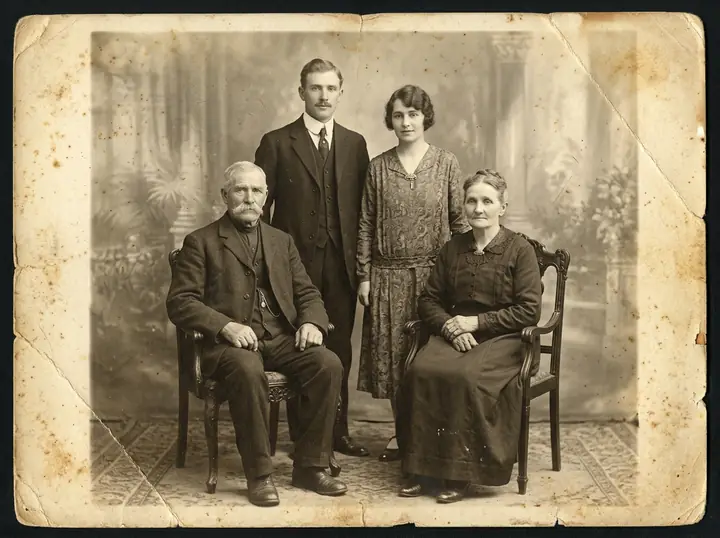
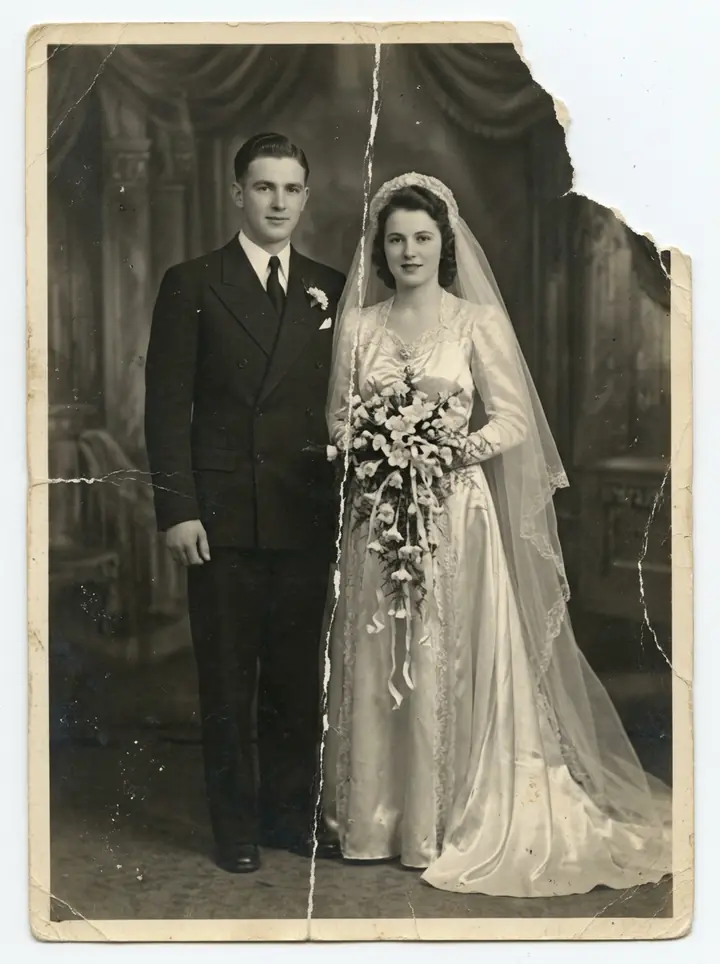
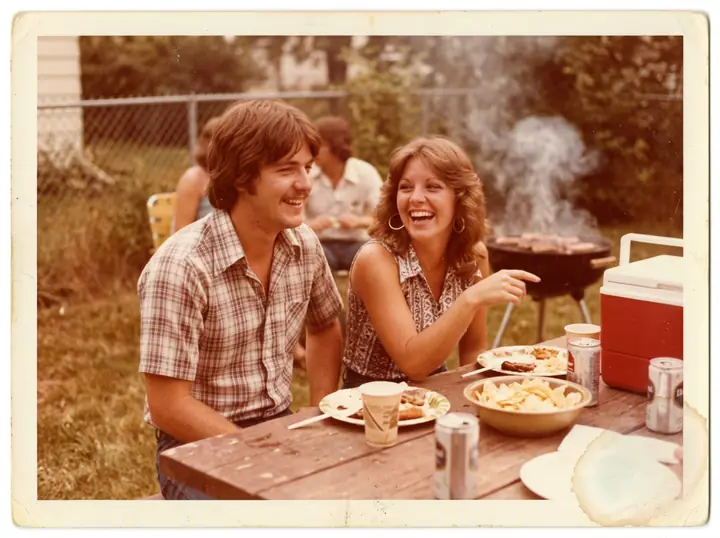
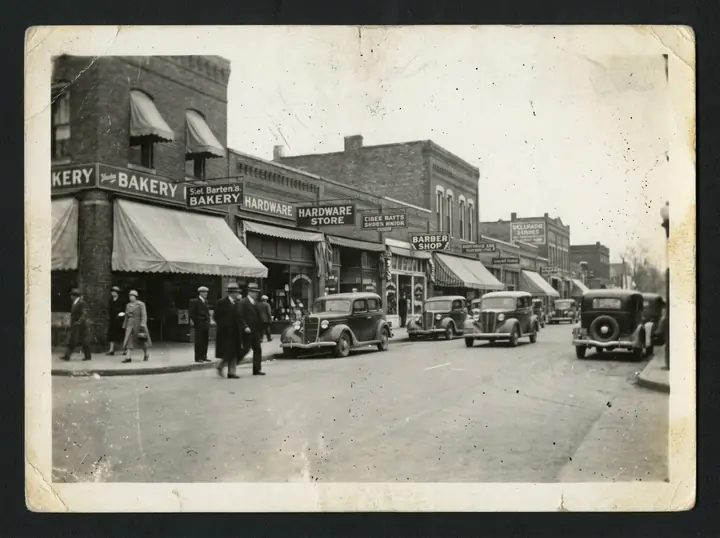
Foxing and a torn edge, a crease through a wedding, a color cast, a scratched street.
Six restorations and the prompts behind them
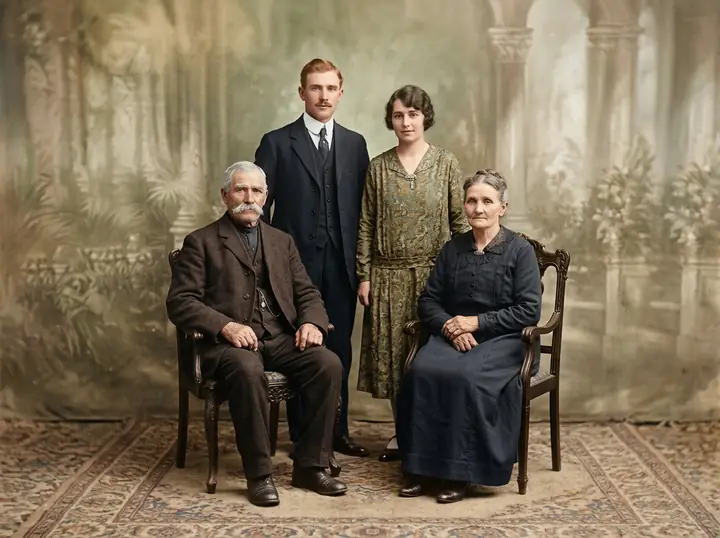
A 1920s family portrait, repaired and in color
Restore this old photo: remove the scratches, creases, spots and tears, bring back the detail in the faces and clothes, and colorize it naturally. Keep the people, their poses and the composition exactly the same.
Spots, crease and torn edges gone, and the four faces still match. The paper border became more backdrop and carpet, and the color is a guess: the dresses could just as well have been blue.
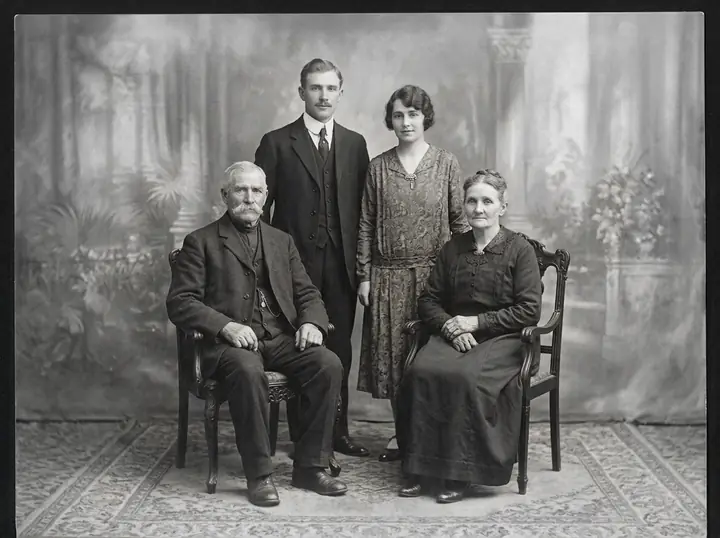
The same photo, repaired but kept black and white
Repair this old photo without colorizing it: remove the scratches, creases, spots, tears and the yellow cast, and keep it a clean black-and-white print. Keep the people, their poses and the composition exactly the same.
No guessed colors, which suits a family archive. It still filled the paper border with more backdrop and carpet, so keep the original next to it.
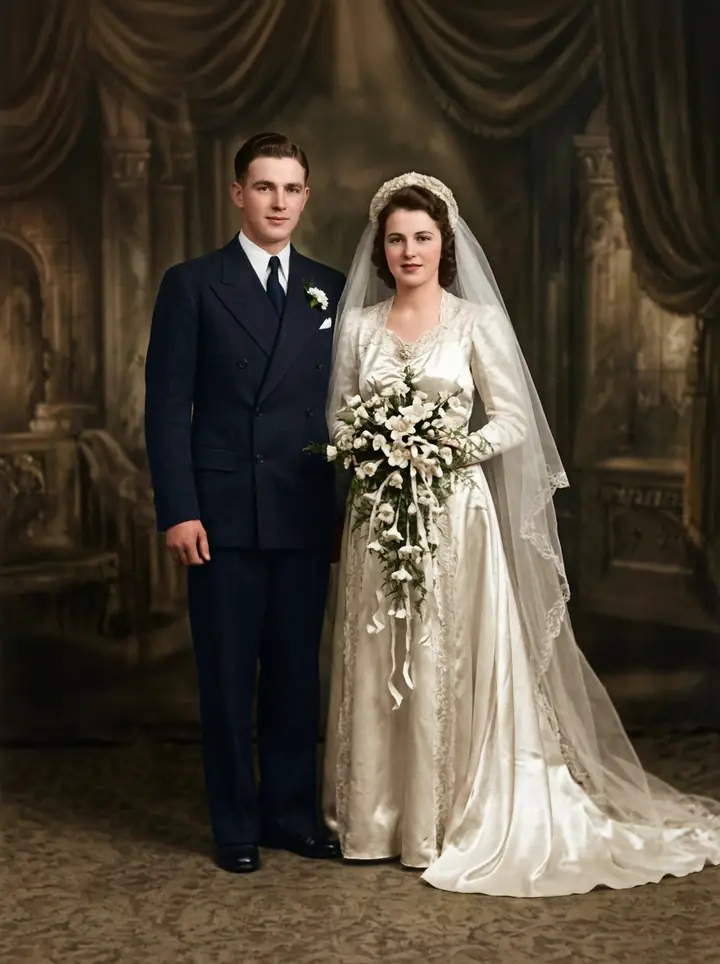
A torn wedding portrait
Restore this old photo: remove the scratches, creases, spots and tears, bring back the detail in the faces and clothes, and colorize it naturally. Keep the people, their poses and the composition exactly the same.
It rebuilt the missing corner of the backdrop and closed the crack that ran through the bride. It also cropped off the paper border.
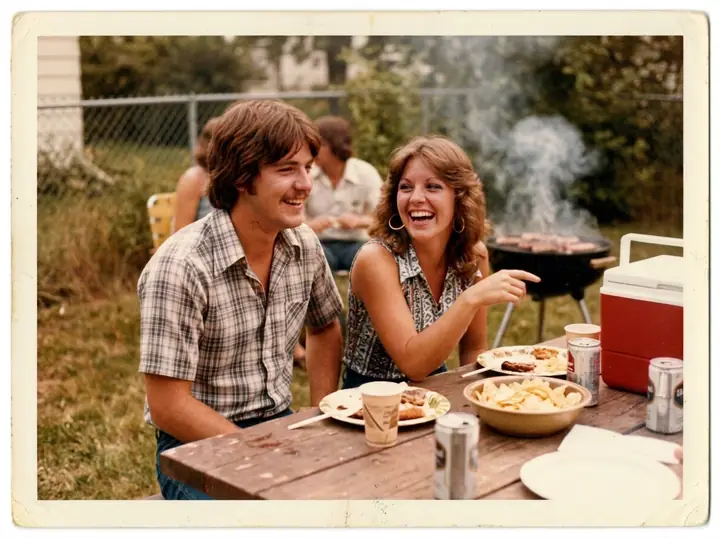
A faded 1970s color print
Fix the faded colors in this 1970s photo: remove the orange cast and the water stain, bring back natural skin tones and colors, and add back contrast. Keep everything else exactly the same, including the white border.
No scratches here, just color gone wrong and a water stain. Asking it to keep the white border kept the print's 1970s look.
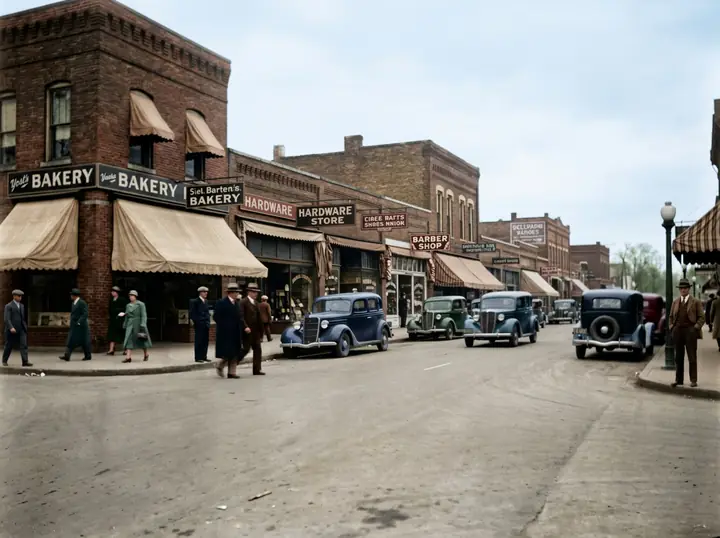
A scratched main street photo
Restore this old photo: remove the scratches and dust, make it sharp and clear, and colorize it naturally. Keep the street, the cars, the shops and the people exactly where they are.
Clean, in color, and the signs still read BAKERY and HARDWARE STORE. Check the right edge, though: the lamp post and the man there weren't in the old print. It filled the paper border with street it made up.
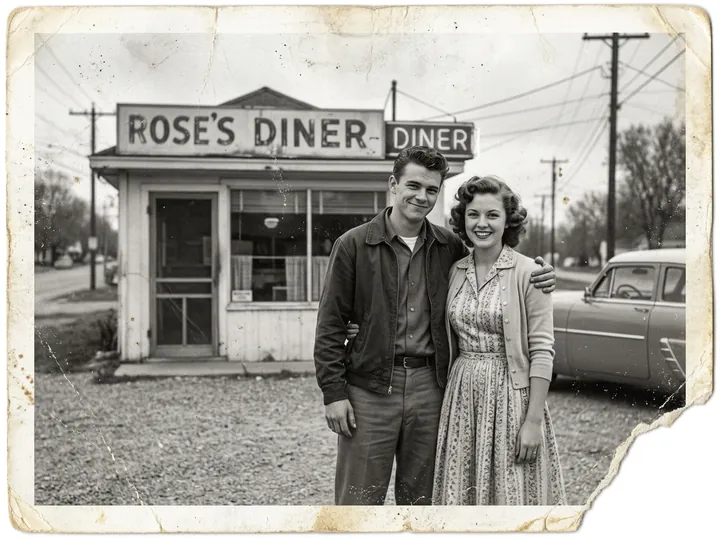
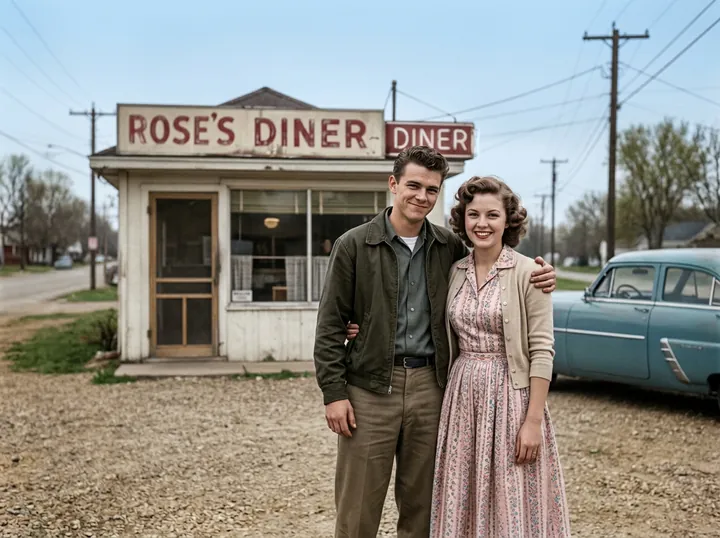
An old photo, restored and in color
Restore this old photo: remove the scratches, creases, dust and the torn corner, sharpen the faces and colorize it naturally. Keep the people, their poses and the composition exactly the same.
The damage and the gray went away. The faces, the diner sign and the car stayed put.
How to get a good restoration
- Start from a flat, sharp copy. Scan the print, or photograph it straight on in daylight with no glare. The model can't bring back what the camera didn't catch.
- Say what to fix and what to keep. Name the damage, then add "keep the people, their poses and the composition exactly the same."
- Decide about color. Colorizing is a guess: the model can't know that a dress was green. Black and white avoids that guess, but it doesn't stop the model from filling in what's missing: our black-and-white family photo got new backdrop and carpet where the paper border was.
- Protect the edges. Both family versions filled the paper border with more backdrop and carpet, and our street photo lost its border and gained a lamp post and a man who were never in it. Say "keep the white border" or "don't extend the picture."
- Pick the size. Choose 2K if you'll print it; it still takes 1 credit. Ours took 17 to 23 seconds each.
- Fix one thing at a time. If a face looks off, click "Edit this image" and ask for only that change.
What it costs
On GetStepSnap your first 1K image is free. After that a restored photo takes 1 credit at 1K or 2K, and 100 credits cost $9.90 (plus local tax where it applies), about $0.10 a photo, with no subscription.
Keep the original
A restored photo is a new picture built from the old one. For family history, keep the original scan next to it and note that the copy was restored with AI. More edits like this in our prompt library.
Questions
Can AI restore old photos?
Yes. Upload a scan or a straight-on photo of the print and say what to repair. In our six tests Nano Banana 2.1 removed scratches, creases, spots, tears and color casts, and the faces stayed the same.
What's a good prompt to restore an old photo?
"Restore this old photo: remove the scratches, creases, spots and tears, bring back the detail in the faces and clothes, and colorize it naturally. Keep the people, their poses and the composition exactly the same." Leave out the colorizing part to keep it black and white.
Can it repair a photo without colorizing it?
Yes. Ask it to repair the photo without colorizing it and to keep it a black-and-white print. The second result on this page was made that way.
Will it change faces or add things that weren't there?
It can. The faces held in our tests, but where the print was missing, under a torn corner or a paper border, the model painted in something new. Say "keep the white border" or "don't extend the picture," and keep your original scan.
How much does it cost on GetStepSnap?
Your first 1K image is free. After that a restored photo takes 1 credit at 1K or 2K, and 100 credits cost $9.90 (plus local tax where it applies), about $0.10 a photo. No subscription.
What happens to the photos I upload?
We store them so the model can read them and so your results stay in your account. We don't sell them or use them for anything else. To have them deleted, email support@getstepsnap.com.